
Verify Your Account
Account verification unlocks full access to IBEE Cloud services including server deployment. Verification has two steps — payment and identity (KYC) — which must be completed in order.
Before you begin
- A signed-in IBEE Cloud account (Sign up if you haven’t already)
- A valid credit card for payment verification
- For Indian users: your 12-digit Aadhaar number and access to DigiLocker
Verification steps overview

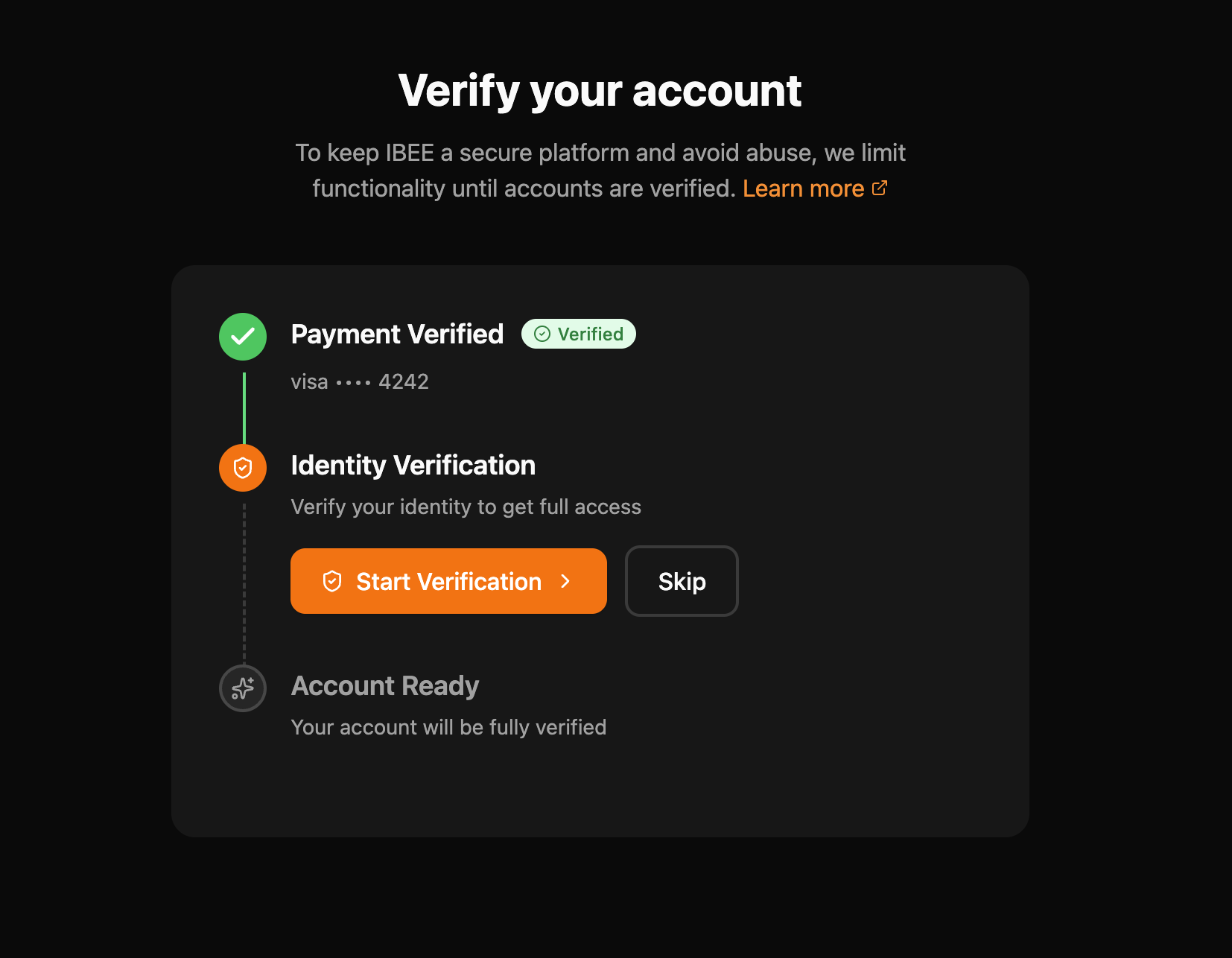
1. Open verification
Go to portal.ibee.ai/accounts. Click Verify Now on the Verification Required banner at the top of the Accounts page.
2. Verify your payment method
On the verification page (portal.ibee.ai/verify), click Verify with Credit Card.
Fill in the payment details:
Click Verify Card to submit.
A temporary $1 authorization charge is made to verify your card. It is automatically refunded within 7 days.
3. Start identity verification (KYC)
Once payment verification is complete, the Identity Verification step becomes active. A Complete KYC modal opens automatically.
Select your country to proceed:
Australia, Brazil, Canada, France, Germany, India, Japan, Mexico, Netherlands, Singapore
4. Aadhaar verification (India only)
If you selected India, an Aadhaar Verification modal appears.
Click Start Aadhaar Verification to proceed. Aadhaar verification is completed via DigiLocker.
Troubleshooting
Verify Now banner not visible
Ensure you are signed in and on the Accounts page at portal.ibee.ai/accounts. The banner only appears for unverified accounts.
Identity Verification step is greyed out The Identity Verification step is locked until Payment Verification is completed. Complete Step 2 first.
$1 charge not refunded The authorization charge is automatically refunded within 7 days. If it has not been refunded after 7 days, contact IBEE support.
DigiLocker redirect not working
Ensure your browser allows redirects and pop-ups for portal.ibee.ai. Try a different browser if the issue persists.
Aadhaar number rejected Ensure you are entering your 12-digit Aadhaar number without spaces.